เคส iPad Pro/Air
 เคส Galaxy Tab
 คีย์บอร์ดแม่เหล็กสำหรับ iPad
 เคส Xiaomi Pad
 อุปกรณ์เสริมแท็บเล็ต
 iPhone 18 Series
 ไอโฟน 17 ซีรีส์
 ไอโฟน 16 ซีรีส์
 iPhone 15 ซีรีส์
 iPhone 14 Series
 iPhone 13 Series
 Galaxy Z Fold & Flip Series
 กาแลคซี ซีรีส์ S26
 กาแลคซี่ ซีรีส์ S25
 กาแลคซี่ ซีรีส์ S24
 กาแลคซี่ ซีรีส์ S23
 Google Pixel 11 Series
 Google Pixel ซีรีส์ 10
 Google Pixel 9 Series
 Xiaomi Series
 วันพลัส ซีรีส์
 Oppo ซีรีส์
 วีโว ซีรีส์
 หัวเว่ย ออเนอร์ ซีรีส์
 ซีรีส์ Nothing
 ไอโฟน ซีรีส์
 Samsung Galaxy Series
 Google Series
 Xiaomi Series
 OPPO ซีรีส์
 คีย์บอร์ดพับได้
 ลำโพง
ลำโพง
 แล็ปท็อป
 สุขภาพ
 ที่วางกระเป๋าสตางค์แบบแม่เหล็ก
 แท่นชาร์จ RayDock
 ที่ชาร์จและสายเคเบิล
 ที่วางโทรศัพท์และแท่นยึด
 ที่ชาร์จรถยนต์
 โปรโมชั่นฤดูร้อน ☀️
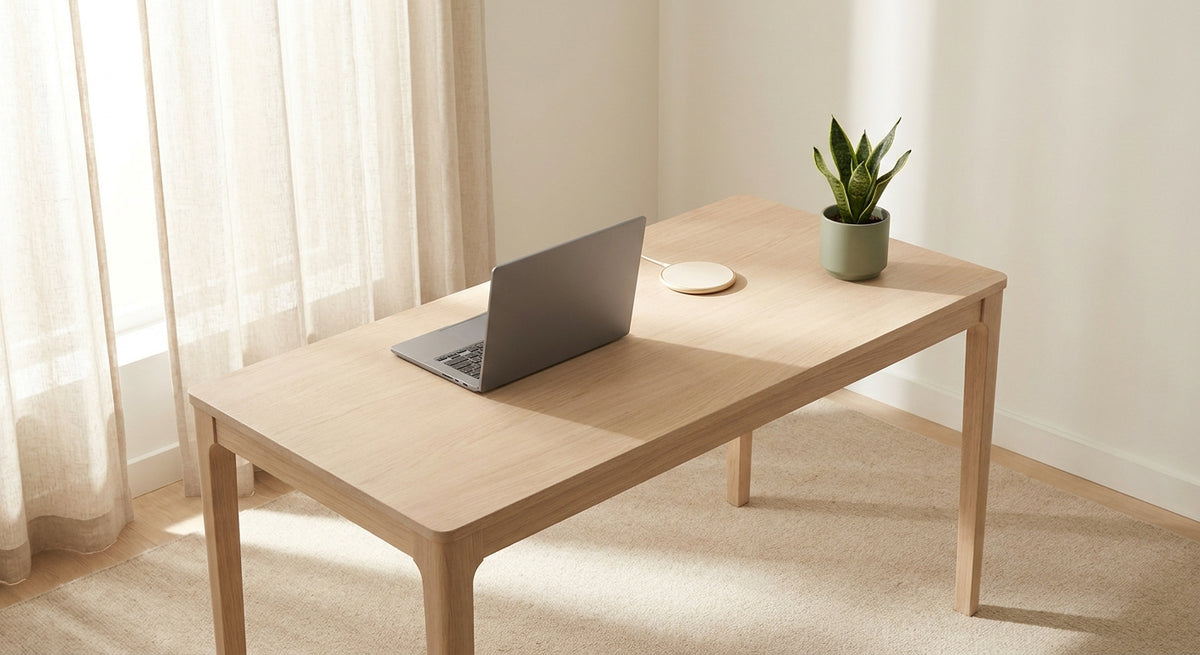
Your Desk Has a Clutter Tax — Here's How to Stop Paying It
Every object on your desk costs you something. A cable that gets in the way. A phone with nowhere convenient to stand. A charger you have to unplug and pack every time you leave. Individually, these seem minor. Together, they create unnecessary friction throughout your workday.
Research from Princeton University suggests that competing visual stimuli place demands on the brain's limited visual processing capacity. While this doesn't mean a tidy desk automatically makes you more productive, it offers a useful reason to think about what deserves space in your working environment.
The minimalist workspace approach isn't about buying more accessories. It's about choosing fewer, better tools that each solve a real problem. This guide organizes four distinct setups around actual workflows, not a generic top-10 list. Find the one that matches how you work, and build from there.
The Thinking Behind a Clutter-Free Desk
A minimalist desk isn't necessarily an empty desk. It's a space where the things you use regularly are easy to reach, and everything else stays out of the way.
The Princeton research on visual attention provides some context. Multiple visual stimuli compete for processing resources, although the research does not directly measure desk organization or workplace productivity.
In practice, the benefits of a simpler workspace are easier to understand through everyday routines. A charging cable that stays organized, a phone that has a proper viewing position, or a keyboard that doesn't occupy unnecessary space can make your setup easier to use.
For remote and hybrid workers, this matters because the workspace may change throughout the week. A desk at home, a shared office, or a café table can each require a slightly different arrangement.
The minimalist principle is straightforward: technology should support your workflow without constantly demanding your attention. Magnetic attachments, compact charging solutions, and accessories that serve more than one purpose can all help.
4 Minimalist Workspace Setups Built Around Real Workflows
Most desk setup guides list accessories generically, as if every remote worker has the same needs. They don't. A desk-bound professional dealing with cable clutter has different priorities than a hybrid worker who packs up every evening.
The four setups below are organized by how you actually work: Minimal Desk, iPad Productivity, Work-Anywhere, and Creator's Everyday.
No single setup requires every product. The goal is matching the right tools to your workflow, not accumulating gear for its own sake.
Setup 1: The Minimal Desk — Magnetic Positioning, Hands-Free Viewing, Less Cable Clutter
Target user: A desk-based remote worker with a smartphone or tablet who wants a clean surface and convenient device positioning.
The problem: Cables trailing across the desk. A phone propped awkwardly against a mug. A charger occupying valuable space. Constant repositioning whenever you need to check a message or reference something on another screen.
The solution: Pair the NILLKIN SnapBranch Pro with the NILLKIN FiberSnap Magnetic Phone Grip Stand.
The NILLKIN SnapBranch Pro brings magnetic device positioning and charging functionality into a more organized desktop setup. Its adjustable structure makes it useful for positioning compatible devices at a comfortable viewing angle.

The NILLKIN FiberSnap adds a compact magnetic grip and stand option for your phone, particularly when you want hands-free viewing away from the main desk stand.
How they work together: Use SnapBranch Pro as your main desktop positioning and charging station. Keep FiberSnap for situations where you want a more portable stand or a different way to hold your phone. Choose the attachment that fits the moment rather than trying to use both in the same position.
Practical benefit: Your phone has a designated place on the desk, charging accessories are easier to organize, and you have a separate stand option when you move away from your workstation.
Who should choose this: People who spend most of their day at a fixed desk and regularly use their phone or tablet alongside a computer.
Setup tip: Position your main stand toward the rear corner of your desk. Keep the phone visible when you need it, without placing it directly between you and your primary screen.
Setup 2: The iPad Productivity Setup — Choosing the Right Keyboard for Your Working Style
Target user: An iPad-primary worker who wants a more practical typing and multitasking setup without carrying a traditional laptop everywhere.
The problem: Choosing the wrong keyboard case can make an otherwise flexible device feel awkward. A traveler needs portability. A desk worker may prioritize stability and typing comfort. A light user may prefer a slimmer, simpler setup.
Three NILLKIN keyboard solutions, matched to different working styles:

Bumper Combo Pro — For a More Versatile iPad Workstation
A good fit for users who want an integrated keyboard case with protection, backlit typing, and flexible viewing modes. Its magnetic design also supports compatible mounting setups, making it useful for people who switch between typing, viewing, and other iPad tasks.
Carry Go — For Work That Moves With You
An option for users who regularly move between their desk, meetings, classes, and travel. It brings keyboard functionality and iPad protection into a carry-friendly setup, reducing the number of separate items you need to manage.
MagicEase Ultra Slim — For a Lighter, More Minimal Setup
Designed for users who prefer a slimmer keyboard arrangement with magnetic convenience. It suits everyday writing, emails, notes, and situations where keeping the setup visually and physically light matters.
These are alternatives, not accessories you need to buy together. The right choice depends on how you carry, position, and type on your iPad.
Add SnapBranch Pro where it makes sense: For a desk-based iPad workflow, an adjustable magnetic mounting setup can help position a compatible tablet for viewing or secondary-screen use. Check model compatibility and mounting requirements before building the setup.
Practical benefit: The right keyboard arrangement makes it easier to switch between typing, reading, viewing, and carrying your iPad without repeatedly rebuilding your workspace.
Who should choose this: Compatible iPad users who rely on their tablet for writing, email, studying, meetings, and light creative work.
Setup tip: Identify your primary use case first: daily desk use, frequent travel, or occasional typing. Start with how you work, not which keyboard case looks best in photos.
Setup 3: The Work-Anywhere Setup — Portable, Compact, Ready When You Are
Target user: A hybrid worker, frequent traveler, or café worker who operates across multiple locations and can't rely on a fixed desk setup.
The problem: Carrying multiple chargers, loose cables, and bulky peripherals defeats the purpose of flexible working. Even when you find a place to work, unpacking and organizing everything can take longer than it should.
The solution: Three compact accessories that address typing, charging, and phone positioning.

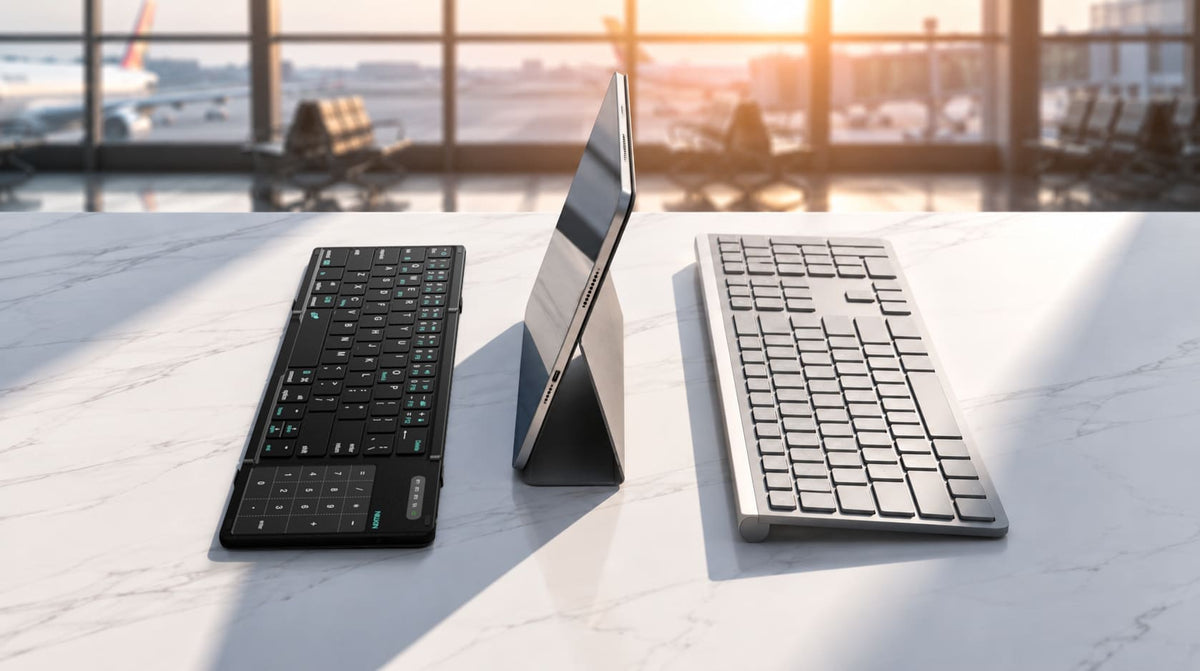
The Cube Pocket folds down to approximately 182 × 108 × 16 mm and weighs about 238g. It offers a 64-key layout with an integrated touchpad, supports iOS, Android, Windows, and macOS, and can pair with up to three devices.
For people who regularly switch between a phone, tablet, and laptop, that flexibility can be more useful than carrying a keyboard dedicated to just one device.
NILLKIN IceCore 65W GaN Retractable Charger
A compact charging solution with a built-in retractable USB-C cable and an additional USB-C connection. It helps reduce the number of loose charging cables in your bag while supporting compatible USB-C devices. Actual charging performance depends on the connected devices and power distribution.
NILLKIN FiberSnap Magnetic Phone Grip Stand
A portable stand option for hands-free phone viewing, useful when your phone becomes a reference screen, a video-call device, or a place to check messages while typing on another device.
How they work together: The IceCore handles charging without requiring a separate primary USB-C cable. The Cube Pocket unfolds when you need a physical keyboard. The FiberSnap gives your phone a viewing position without a larger desktop stand.
Practical benefit: A compact typing, charging, and viewing setup that is easier to pack and reassemble across different locations.
Who should choose this: People who frequently work from cafés, coworking spaces, hotels, or multiple devices throughout the day.
Setup tip: Pair the Cube Pocket with your most-used devices in advance. Once configured, you can switch between supported devices without going through the pairing process every time.
Setup 4: The Creator's Everyday Setup — Smart Glasses, Organized Charging, Content-Ready
Target user: A content creator or professional using compatible Ray-Ban Meta smart glasses as part of their everyday workflow.
The problem: Smart glasses introduce another device and charging routine. The original charging case needs power, and leaving charging cables and accessories scattered across the desk makes the workspace harder to manage.
The solution: Combine the NILLKIN RayDock with the IceCore 65W GaN Charger and FiberSnap Magnetic Phone Grip Stand.
A dedicated charging dock designed for compatible Ray-Ban Meta smart glasses charging cases. It gives the original case a designated place to sit while charging, rather than leaving it loose among other devices.
NILLKIN IceCore 65W GaN Charger
A compact power source for compatible USB-C devices. Depending on your charging arrangement and the power requirements of each device, it can help organize the cables and adapters you use across your setup.
NILLKIN FiberSnap
A compact phone stand that can be useful for reviewing footage, checking reference material, following notes, or taking video calls.
How they work together: Keep the smart glasses charging case in its dedicated RayDock, use the IceCore as part of your charging setup, and position your phone with FiberSnap when reviewing or preparing content.
Practical benefit: Your frequently used devices have more consistent places to sit, charge, and be accessed. The goal isn't to add more equipment to the desk, but to make the equipment you already use easier to manage.
Who should choose this: Ray-Ban Meta users who regularly capture content, use hands-free communication, or want a dedicated place for their smart glasses charging case.
Setup tip: Place RayDock somewhere easy to reach when you return to your desk. A consistent charging location can make it easier to keep the glasses ready for your next session.
Minimalist Workspace Comparison: Which Setup Fits Your Workflow?
| Setup | Best For | Core Accessories | Main Benefit |
|---|---|---|---|
| Minimal Desk | Fixed desk workers | SnapBranch Pro + FiberSnap | Organized positioning and charging |
| iPad Productivity | iPad-focused workers and students | Bumper Combo Pro / Carry Go / MagicEase Ultra Slim + optional SnapBranch Pro | Flexible typing and tablet use |
| Work-Anywhere | Hybrid workers and travelers | Cube Pocket + IceCore + FiberSnap | Portable typing, charging, and viewing |
| Creator's Everyday | Compatible Ray-Ban Meta users | RayDock + IceCore + FiberSnap | Organized smart-glasses charging and content workflow |
The most effective minimalist setup isn't the one with the most features. It's the one with the fewest accessories that still solve the practical problems in your workflow.
FAQ: Minimalist Workspace Setup
Do I need a wireless charger if I already have a fast wired charger?
Not necessarily. A magnetic wireless charging stand can make it easier to place and pick up your phone throughout the day without repeatedly connecting a cable. But if your existing wired charger works well and cable clutter isn't a problem, there's no need to replace it simply for a minimalist look.
Is the Cube Pocket Keyboard good enough for full-day typing?
The Cube Pocket is designed primarily around portability and flexible device use. Its compact 64-key layout and integrated touchpad are useful for emails, documents, notes, and mobile work. For people who type continuously for long periods at a fixed desk, a larger keyboard may offer a more comfortable arrangement.
Do I need a keyboard case if I already have a Bluetooth keyboard?
Not necessarily. A standalone Bluetooth keyboard like the Cube Pocket offers flexibility across multiple devices. An iPad keyboard case combines typing functionality with a more integrated tablet setup. Choose a keyboard case if your iPad is your main working device; choose a standalone keyboard if you regularly switch between a phone, tablet, and laptop.
How much difference does cable reduction actually make to focus?
There's no reliable universal percentage that measures how much productivity improves when you remove cables from a desk. The practical benefit is simpler organization: fewer loose items to move, easier access to charging, and a more consistent place for your devices. Whether that improves focus depends on your working habits and environment.
Is the Work-Anywhere setup practical for a full workday or just short sessions?
It depends on the work. The Cube Pocket and IceCore can support a portable setup for emails, writing, communication, and other everyday tasks, provided your devices are compatible and have sufficient power. For extended typing, detailed design work, or tasks requiring a large display, a full workstation may still be more comfortable.
How do I choose between the three NILLKIN iPad keyboard options?
Start with your main working style. Bumper Combo Pro is worth considering for flexible typing and viewing modes. Carry Go suits users looking for an integrated keyboard-and-carry arrangement. MagicEase Ultra Slim is an option for users who prioritize a lighter, more minimal setup. Check the exact iPad model, keyboard layout, and product features before choosing.
Build Your Setup Around Your Workflow, Not Around a Product List
A minimalist workspace isn't about keeping your desk empty. It's about making room for the work you actually do.
Start with whatever slows you down most: cables that get tangled, a screen that's awkward to position, or accessories that are inconvenient to carry. Fix that first, then see what else you genuinely need.
Whether you work from one desk or move between different places, the right setup should feel easy to use and easy to maintain. Sometimes that means adding a useful tool. Sometimes it means realizing you don't need another one.
Keep what works. Make space for what matters.