iPad Pro/Air Cases
 Galaxy Tab Cases
 Magnetic iPad Keyboard
 Xiaomi Pad Cases
 Tablet Accessories
 iPhone 18 Series
 iPhone 17 Series
 iPhone 16 Series
 iPhone 15 Series
 iPhone 14 Series
 iPhone 13 Series
 Galaxy Z Fold & Flip Series
 Galaxy S26 Series
 Galaxy S25 Series
 Galaxy S24 Series
 Galaxy S23 Series
 Google Pixel 11 Series
 Google Pixel 10 Series
 Google Pixel 9 Series
 Xiaomi Series
 OnePlus Series
 Oppo Series
 Vivo Series
 Huawei Honor Series
 iPhone Series
 Samsung Galaxy Series
 Google Series
 Xiaomi Series
 OPPO Series
 Foldable Keyboard
 Speakers
 Laptop
 Health
 Magnetic Wallet Stand
 RayDock Charging Dock
 Chargers & Cables
 Phone Stands & Mounts
 Car Charging
 🎃 Halloween Sale
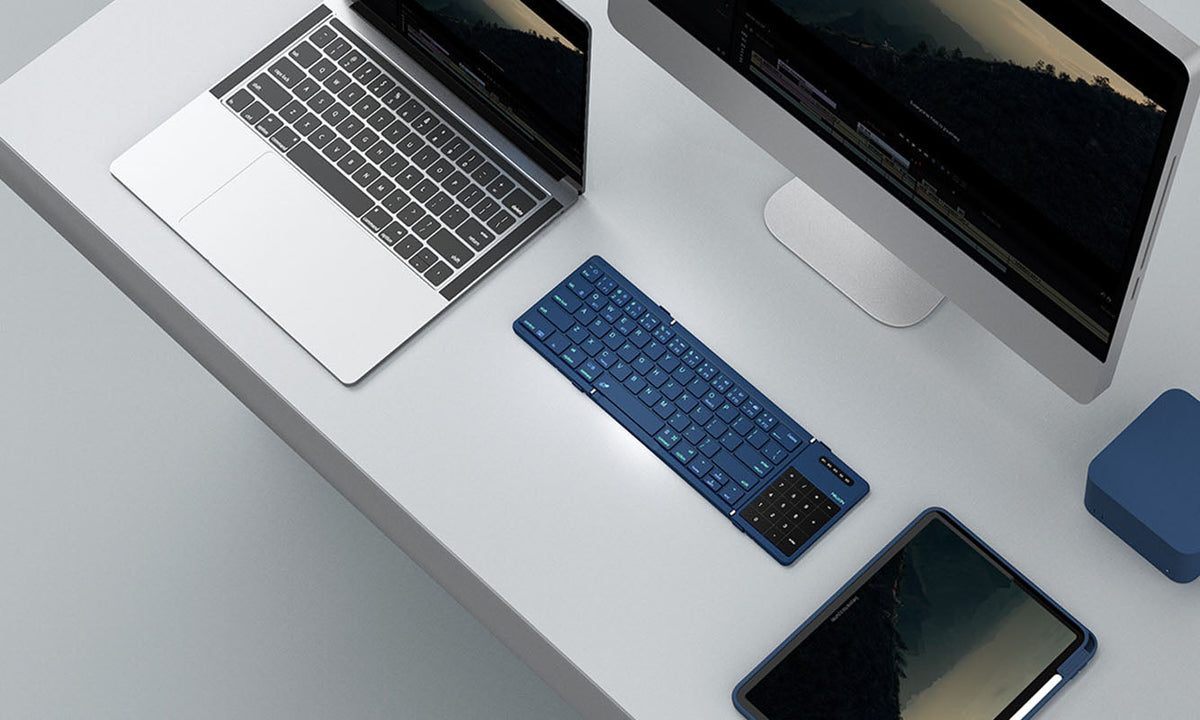
The NILLKIN Cube Pocket Keyboard lets you pair up to three Bluetooth devices and switch between them without starting from scratch each time. Whether you're using a phone, tablet, or laptop, all you need are a few simple keyboard shortcuts.
This guide covers first-time pairing, switching between devices, and troubleshooting common Bluetooth connection problems.
How to Pair the Cube Pocket Keyboard
The Cube Pocket Keyboard supports three Bluetooth channels: BT1, BT2, and BT3. Each channel can be assigned to a different device, but only one channel is active at a time.
- Turn on the keyboard. Unfold the Cube Pocket Keyboard and switch it on.
- Select a Bluetooth channel. Press Fn + Q for BT1, Fn + W for BT2, or Fn + E for BT3.
- Enter pairing mode. Press Fn + C. The blue Bluetooth indicator will flash.
- Connect your device. Open Bluetooth settings on your phone, tablet, or computer and select Cube Pocket Keyboard.
Once connected, open a notes app or text field and try typing to confirm the connection.
How to Connect a Second or Third Device
To connect another device, select a different Bluetooth channel and repeat the pairing steps.
For example, you could assign BT1 to your phone, BT2 to your tablet, and BT3 to your laptop. You can choose any arrangement that works for you.
How to Switch Between Paired Devices
Once your devices are paired, use these shortcuts to switch between them:
| Shortcut | Function |
|---|---|
| Fn + Q | Switch to BT1 |
| Fn + W | Switch to BT2 |
| Fn + E | Switch to BT3 |
| Fn + C | Enter Bluetooth pairing mode |
| Fn + R | Reset the keyboard (hold for 3 seconds) |
Important: You don't need to press Fn + C every time you switch devices. Simply select the channel you've already paired, and the keyboard will attempt to reconnect automatically.
Three-device connectivity means you can switch between saved devices, not type on all three simultaneously.
Bluetooth Settings for Different Devices
After selecting a channel and pressing Fn + C, find Cube Pocket Keyboard in your device's Bluetooth settings.
| Device | Bluetooth Settings |
|---|---|
| iPhone / iPad | Settings > Bluetooth |
| Android | Settings > Connected devices / Bluetooth |
| Windows 11 | Settings > Bluetooth & devices > Add device |
| Windows 10 | Settings > Devices > Bluetooth & other devices |
| Mac | System Settings > Bluetooth |
Menu names may vary depending on your device and operating system version.
Troubleshooting Common Bluetooth Connection Problems
Keyboard Not Showing Up in Bluetooth Settings?
Make sure you've selected a Bluetooth channel and pressed Fn + C to enter pairing mode. Check that Bluetooth is enabled on your device, then search again.
Can't Switch Between Devices?
Confirm that the selected channel has already been paired and that Bluetooth is enabled on the target device. Use Fn + Q/W/E to switch channels rather than pressing Fn + C again.
Keyboard Disconnects After Being Idle?
The Cube Pocket Keyboard enters sleep mode after approximately 10 minutes of inactivity. Press any key for about 2 seconds to wake it and allow the Bluetooth connection to resume.
Still Not Connecting? Try a Reset
If the connection issue continues, follow these steps:
- Press and hold Fn + R for 3 seconds.
- The three Bluetooth indicators should flash rapidly three times.
- If necessary, remove the previous keyboard connection from your device's Bluetooth settings.
- Select a channel, press Fn + C, and pair the keyboard again.
If the issue continues after resetting, contact NILLKIN Support for assistance.
Frequently Asked Questions
Do I need to pair the keyboard every time I switch devices?
No. Once your devices are paired, use Fn + Q, Fn + W, or Fn + E to switch between them. You don't need to repeat the pairing process during normal switching.
Can I type on three devices at the same time?
No. The Cube Pocket Keyboard supports up to three paired devices, but only one Bluetooth channel is active for typing at a time.
What if my keyboard won't reconnect to a previously paired device?
Check that the device's Bluetooth is enabled and the keyboard has enough battery power. Try selecting the correct channel again. If reconnection still fails, follow the reset and pairing steps above.
Get More From Your Cube Pocket Keyboard
Once your devices are paired, switching between your phone, tablet, and laptop is straightforward. Remember the essentials: Fn + Q/W/E to switch, Fn + C to pair, and Fn + R to reset when needed.
Explore the NILLKIN Cube Pocket Foldable Bluetooth Keyboard with Touchpad for more product details.